Practice without a customer drawing
The existing free five-plan pack has labeled dimensions, answers, a facilitator guide, and its own CC BY 4.0 reuse terms. No account or purchase is required.
Open the free practice plansConstruction takeoff knowledgebase · Published September 30, 2026
A calibration mistake can double both dimensions and make the area four times too large. Check the sheet and a second independent span before tracing or pricing anything.
The room below is an original synthetic learning example, not a customer project, construction document, procurement quantity, or recommended bid.
A 3-minute, 12-second walkthrough of the reference, independent check, and four-times-area mistake. English captions and the full transcript are included; nothing plays until you choose it.
Produced by Takeoff Field Tools with an AI-generated ElevenLabs narration. Drawings are original synthetic practice. The product insert is July 2026 footage from a separate owned test project, not a recording of importing these sheets. No customer drawing or identity is used.
A room can measure correctly on one page of a PDF and come out four times too big on the next. The drawing didn't change. The calibration did. Here's the check I make before I price anything.
I made two practice sheets of the same sixteen-by-twelve-foot room. The detailed sheet is drawn at a quarter inch to the foot. The overview is an eighth inch to the foot. It's one PDF, but the room is drawn at two different sizes. These are learning drawings, not construction documents.
On the detailed sheet, I use the sixteen-foot dimension as my reference. I pick the ends of that actual dimension span, not the edge of the page and not a convenient object nearby. The title-block scale gives me context. A known dimension gives me something I can check.
In Takeoff, calibration belongs to the source sheet. This real product footage uses a separate practice project. The important move is the same: set the reference, measure, and keep the quantity attached to the sheet that produced it. Moving to another sheet means checking that sheet's calibration.
Then I check a second, independent span. Here, that other wall should be twelve feet. If sixteen checks but twelve doesn't, I stop. I might have picked the wrong endpoints, used the wrong units, or received a drawing that was stretched. More tracing won't fix a bad reference.
Now watch the expensive-looking mistake. I take the overview's calibration and apply it to the detailed sheet. Every length doubles. Sixteen by twelve becomes thirty-two by twenty-four. The correct area is one hundred ninety-two square feet. The wrong area is seven hundred sixty-eight. That's four times the material quantity before I've added any waste. Reverse the mistake and the area drops to forty-eight square feet. So this can overstate the work or leave you badly short. Neither result is an estimating judgment. It's a measurement error. Don't hide it by changing a unit price.
My reset is simple. Confirm the sheet and revision. Calibrate that sheet from a trustworthy dimension. Check a second span. Then measure the scope. If the page contains details at different scales, treat each detail as its own measurement context. A note that says not to scale the drawing is a reason to use stated dimensions or ask for clarification, not permission to guess.
Once both sheets check, they should agree on the same room area. Only then do I make decisions about deductions, material coverage, waste, labor, and cost. One hundred ninety-two square feet is the starting geometry. It isn't a purchase quantity, a labor allowance, or a complete bid.
Before your next takeoff, pick one dimension you trust and another that can challenge it. If they disagree, stop there. The free practice-plan library is linked below so you can try that habit without using a customer job. Takeoff Field Tools is the Windows tool shown here. The point isn't to trace faster. It's to know which drawing your number came from.
The outline-centerline geometry is 16 × 12 = 192 square feet before deductions. Sheet A-101 represents one foot with a quarter inch. Sheet A-201 represents one foot with an eighth inch. Both describe the same room; the second drawing is half as wide and half as tall on the original PDF page.
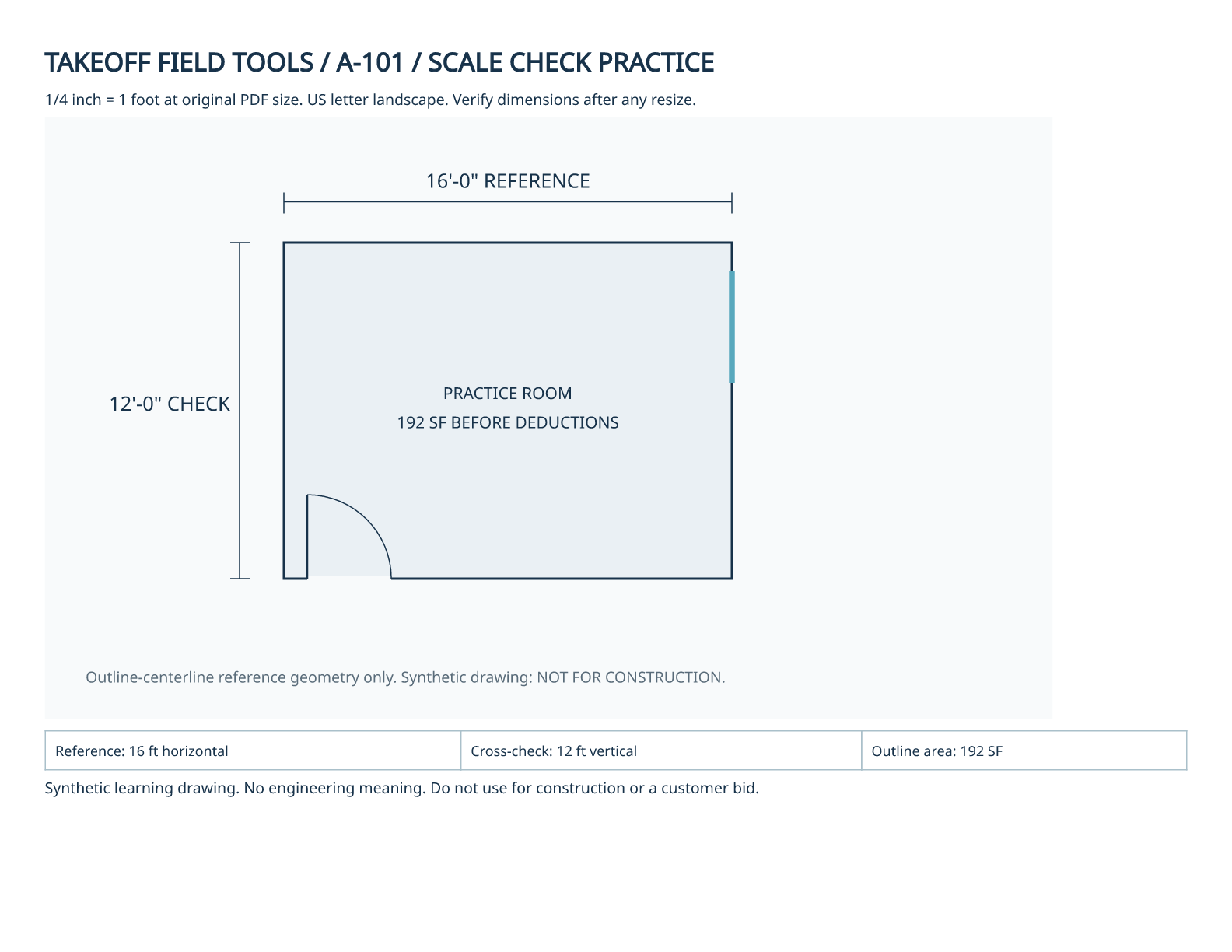
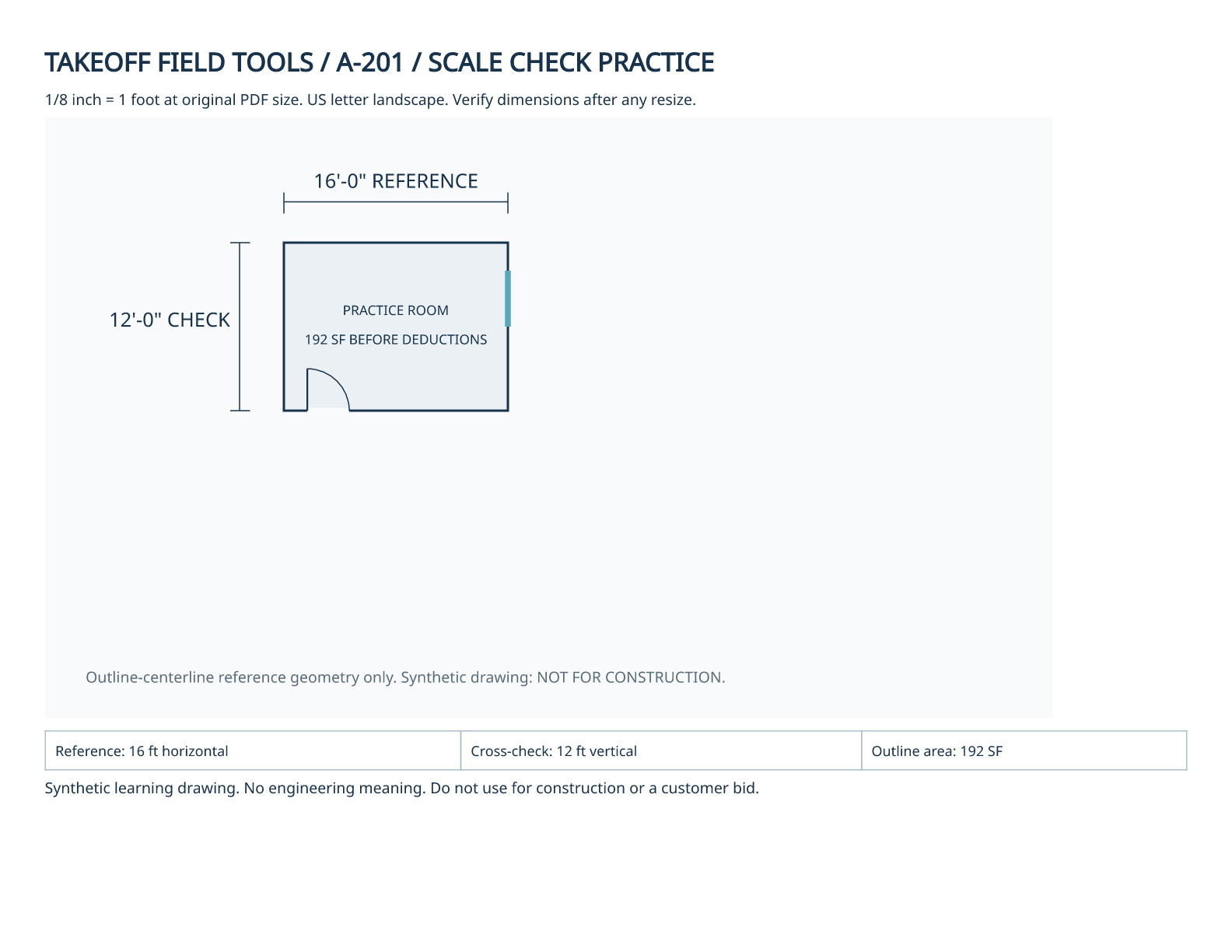
These web previews resize to your screen. They illustrate the difference; do not use their displayed size as a printed calibration reference.
If you apply the overview's calibration to the larger detail drawing, every measured length doubles. Area multiplies in both directions: 2 × length and 2 × width = 4 × area. Reversing the error halves both dimensions and leaves one quarter of the correct area.
| Calibration | Reported dimensions | Reported area |
|---|---|---|
| Correct for the sheet | 16 × 12 ft | 192 SF |
| Overview scale on detail | 32 × 24 ft | 768 SF · 4× too large |
| Detail scale on overview | 8 × 6 ft | 48 SF · one quarter |
No wall moved. This is a measurement error, not a reason to change a unit price or conceal the difference inside a waste factor.
Respect drawing instructions. A “do not scale” note is not permission to guess from the picture: use stated dimensions or ask the drawing author for clarification.
A viewer or printer can change a sheet's physical size. Adobe documents that Acrobat's Fit setting resizes pages to the printable area, while Actual size prints without scaling and can crop content that does not fit. Check a stated dimension after any resize rather than trusting the title-block scale alone. Adobe's page-sizing documentation.
This synthetic example establishes an outline-centerline area before deductions. It does not establish net finish coverage, purchase units, waste, labor productivity, local supplier prices, delivery, taxes, or a complete scope. Record those decisions separately and use the actual project specification and current quote when applicable.
The existing free five-plan pack has labeled dimensions, answers, a facilitator guide, and its own CC BY 4.0 reuse terms. No account or purchase is required.
Open the free practice plansSee Takeoff's existing PDF measurement and estimating workflow. Takeoff Field Tools is Windows-only, $79 once, with no subscription; no automatic AI/OCR takeoff or live supplier-price feed is claimed.
Inspect the Windows PDF workflow